Welcome to our Help Center
Welcome to the Zenfied Help Center! This resource guides you through every feature of our platform. Find step-by-step instructions here. Learn how to create polls. Manage your account. Master advanced tools like themes and real-time analytics. Use the sidebar to navigate specific topics.
Introduction
Zenfied is an interactive polling platform. We focus on simplicity and speed. Create polls to gather opinions instantly. Our tools visualize data in real-time. We support Single Choice, Multi-Select, Ranking, and Media polls. Use these tools to engage communities and make decisions based on data.
The Value of Polls
Polls solve decision-making problems efficiently. They replace long email threads and vague feedback. Use polls to:
- Streamline Work: Gather team consensus quickly on projects or schedules.
- Engage Audiences: Keep followers active on social media with interactive content.
- Resolve Conflicts: Let the majority decide on group activities.
- Collect Feedback: Get direct answers from customers about products.
- Visual Data: See results instantly. Stop counting manual replies.
Terms of Use Summary
By using Zenfied, you agree to our terms. Below is a summary of key points:
- Accounts: Provide accurate information. You are responsible for your account security.
- Content: You own your content. You grant us a license to display it. Do not post illegal, harmful, or copyrighted material.
- Voting: Do not use bots or scripts. Do not manipulate vote counts. We remove rigged polls.
- Liability: The service is provided "as is". We are not liable for data loss.
Read the full Terms of Use for complete details.

First Steps: Creating Your First Poll
Follow this guide to build and launch a poll in minutes.
1. Select Poll Type
Choose a format from the sidebar menu. Realtime Card Polls update results instantly. Single Choice restricts voters to one answer. Multi-Select permits multiple selections. Ranking Polls let voters reorder options. Image and Video Polls leverage visual media.
Read full specifications in our Poll Types Guide.
2. Poll Question Input
Enter your main question in the Title field. Keep the text specific to ensure clear answers from your audience.

3. Answer Options
Type answer choices in the list below. Use the "+ Add" button for more rows. Enable "Allow other users to add options" in Settings to let voters contribute answers.

4. Text Styling & Fonts
Select any text in the preview to open the styling toolbar. Apply Bold, Italic, Strike, or Underline styles. Adjust text alignment and color. Change the font family to match branding.
Type answer choices in the list below. Use the "+ Add" button for more rows. Enable "Allow other users to add options" in Settings to let voters contribute answers.
5. Customize Theme
Apply a preset look from the Themes tab. Options include Default, Instagram, TikTok, YouTube, and Christmas styles. Customize specific colors using the Quick Swatches bar.
6. Settings
Configure voting logic in the Settings tab. Set a closing deadline. Strengthen integrity with Voting Security. Control Result Visibility options. Toggle "Require Account" to restrict voting to registered users.

7. Draft & Publish
Save work as a Draft to finish later. Click Publish when ready to go live. Your poll generates a unique link to share immediately.
Frequently Asked Questions
What is Zenfied?
Zenfied is a modern poll maker. You build interactive polls to gather opinions instantly. Choose formats like Realtime Cards, Single Choice, Multi-Select, Ranking, Image, or Video polls. Share your links to collect votes in real time.
Do I need an account to create or vote?
No. You do not need an account to create or vote. We support anonymous guest access. An account lets you save polls, edit designs later, and track detailed analytics on your dashboard. Creators enforce logins for strict voting security.
Are my uploaded images secure?
Yes. Your uploaded images are secure. We store them on a global content delivery network. Manage your files in the Media section on the create poll page. You delete your images there anytime.
How do you protect polls from spam and fake votes?
We provide three layers of voting security. You choose the rules. Restrict votes by IP address to prevent network spam. Use browser session limits for standard protection. Enforce mandatory account logins to guarantee one vote per person.
How do I control who sees the poll results?
Set result visibility before you publish. Keep results public at all times. Hide results until a user submits a vote. Lock results completely until your specified deadline passes. Keep data entirely private on your dashboard.
Do you allow editing after publishing?
Yes. You update titles, descriptions, and visual themes anytime. You do not alter answer options or switch the poll format once voting starts. This preserves data integrity.
Are my polls searchable on Google?
No. Polls remain private to your audience. Search engines do not index your individual poll links automatically. Only people with your direct link view and participate in your poll.
Understanding Poll Types
This section breaks down every poll type available on our platform, helping you choose the perfect format for your needs.
1. Single Choice Poll
A Single Choice poll allows users to vote for only one option from the list. Once an option is selected, they cannot choose another. This is designed for questions that require a single, clear answer from each voter.

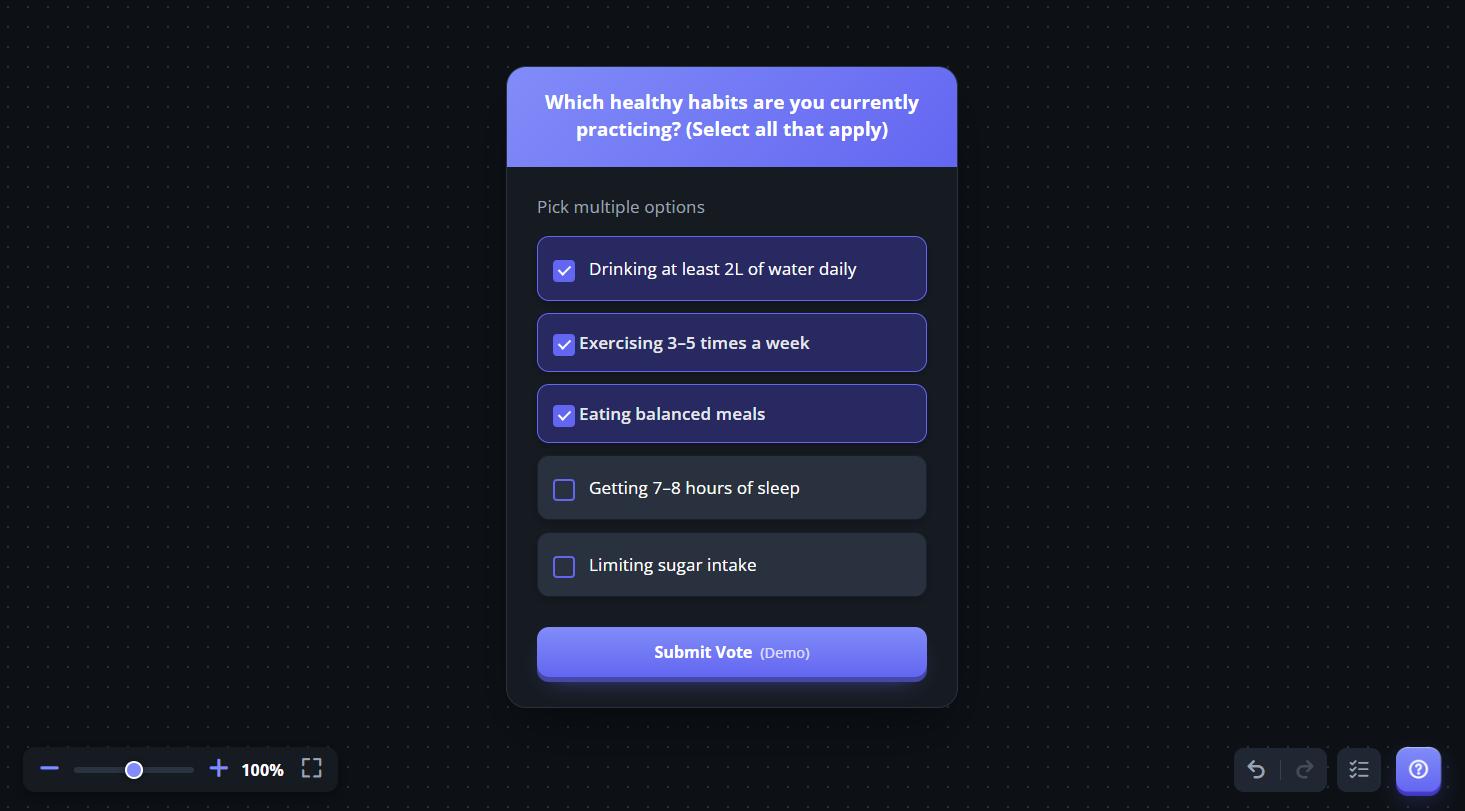
2. Multi-Select Poll
A Multi-Select poll allows users to choose more than one option from the list. Voters can check multiple boxes based on what applies to them. This is ideal for questions where more than one answer can be valid.
3. Ranking Poll
A Ranking Poll allows users to arrange options in order of importance. Instead of selecting one or multiple answers, voters drag and drop the choices based on their preference. This is ideal for questions that require prioritization rather than simple selection.

4. Image Poll
An Image Poll uses pictures instead of plain text for the options. Users choose their answer based on visuals, making the poll more engaging and easier to understand at a glance.
In our Image Poll, you can set it as Single Choice (users can select only one image) or Multi-Select (users can select multiple images). You can also define the maximum number of images a user is allowed to select.

5. Video Poll
A Video Poll allows users to vote using video from youtube link instead of text or images. Voters can watch the video directly within the poll before making a decision.
Similar to the Image Poll, the Video Poll can also be set as Single Choice or Multi-Select. You can also define the maximum number of videos a user is allowed to vote for.

6. Realtime Card Poll
Our Unique Realtime Poll Card is designed for dynamic and interactive voting. Each option appears as a large visual card with its own vote button, making it easy for users to engage instantly.
Votes are reflected in real time, and rankings update automatically on the screen. This makes it ideal for live sessions, community engagement, and fast-paced audience interaction.

Managing Images & Media
Media uploads support Realtime Card Polls and Image Polls. The platform hosts images but does not host raw video files. You use YouTube links for video content.
1. Media Image Upload
The Media Library gives you centralized control over all your uploaded files.
In the Media Section, you can upload multiple images in a single upload. You can also manage your entire upload history here.
Reuse previously uploaded images for new polls to save time.
Delete unused files to keep your storage organized.
Download original files if you lose your local copy.
Import images directly from a URL to skip manual downloading.
Recommended Dimensions:
- Poll Options: 1:1 (Square) - keeps the grid clean and uniform.
- Main Thumbnail: 16:9 or 4:3 (Landscape) - fits the standard card layout properly.

2. Video Embeds
The platform supports YouTube video links only. Direct video file uploads are not supported.
To Upload your own video:
- Upload your video to YouTube.
- Copy the public video URL.
- Paste the link into the video field.
The system detects the link and embeds the player automatically. Make sure the video visibility is set to Public or Unlisted so viewers can access it.
3. Security & Content Policy
All uploaded images are stored securely and delivered over encrypted HTTPS connections to ensure safe data transfer.
You retain full ownership of your uploaded content. ZenFied does not access, resell, reuse, or distribute your media outside of normal platform delivery.
Uploaded content is not used for illegal, unauthorized, or external activities.
You may manage or permanently delete your files at any time from the Media section.
Theme Customization
We provide deep visual customization. Adjust colors and typography to match your brand perfectly.
1. Global Styles
Switch between solid headers and minimalist borders. Change the font family for the entire poll. We offer a wide selection of modern sans-serifs and elegant serifs.
2. Color Picker
Click any color circle to open the picker. Use Solid Mode for single colors. Use Gradient Mode to add multiple color stops. Use the Eye Dropper to pick colors directly from your screen.
3. Custom Themes
The system saves custom themes to your account automatically. Reuse your unique branding across multiple polls instantly.
Poll Configuration
Control the logic and security of your poll. Configure rules before publishing to ensure accurate results.
1. Require Account
Turn this on to restrict voting to logged-in users. Turn this off to permit guest voting. Required accounts prevent duplicate entries completely.
2. Voting Security
Limit guest votes using these options:
- IP Address: Restricts voting to one vote per network.
- Browser Session: Tracks users via cookies.
- None: Allows unlimited voting. Use this for casual polls only.
3. Result Visibility
Choose when voters see the results. Keep them always public. Reveal them only after a user votes. Hide them entirely until the deadline passes. Keep them private for your eyes only.
4. Additional Options
Set a deadline to close the poll automatically. Toggle comments and share buttons on or off.
Social Sharing
Distribute your poll to collect votes rapidly. We offer multiple sharing methods.
1. Direct Link
Copy the unique URL from your poll page. Paste it into Discord, Messenger, or any social app.
2. QR Code
Click the QR Code icon to generate a scannable image. Use this for live events or presentations. Attendees scan and vote directly on their phones.
Website Embedding
Place your poll directly on your website or blog to engage your own visitors.
1. Generate Code
Click the Embed button on the poll page. Copy the provided HTML snippet.
2. Paste Widget
Paste the snippet into your website builder. The widget adjusts its height automatically to fit your page layout.
Analytics Overview
Track poll performance from your dashboard. Understand your audience better.
1. Dashboard Metrics
View total votes, page views, and engagement rates at a glance.
2. Real-Time Charts
Monitor charts to see exactly when users vote and interact with your polls.
Account Creation
Create a free account to manage your polls and access advanced features.
1. Sign Up Options
Click Sign Up. Use an email and password or a Google account for instant access.
2. Account Benefits
A registered account lets you save drafts, edit published polls, and view detailed analytics.
Profile Settings
Manage your public presence and account security.
1. Profile Customization
Go to Dashboard, then Settings. Update your Display Name and Bio. Upload a profile avatar. We support PNG, JPG, and WEBP formats.
2. Security
Change your password in the security tab. Manage Google login settings through your primary Google account.
Data Deletion
You control your data. Remove your content from our servers at any time.
1. Delete Polls
Go to Dashboard, select All Polls. Click the menu next to a poll and select Delete. This action is permanent. It wipes all associated votes and comments.
2. Delete Media
Go to All Media. Select images and delete them to free up storage space instantly.
3. Full Account Deletion
Contact our support team to request full account deletion. We purge your profile, polls, votes, and media within 24 hours.